

Documentation Index
Fetch the complete documentation index at: https://help.findspace.app/llms.txt
Use this file to discover all available pages before exploring further.
Check out a video walkthrough showing AI with Space
Get introduced to AI in Sp§ace.
- Quick context: get a briefing of today, this week, or a specific project.
- Search and review: find tasks, check long-term plans, and spot what’s stuck.
- Plan with more context: connect other information sources to your agent for assisted goalsetting.
- Hands-on changes: create and update tasks/projects/areas/groups, and manage yearly/quarterly plans.
- “What does today look like in Space? Include events.”
- “Open my current week and highlight anything overdue.”
- “Get my action items from these meeting notes and add them to the Summer Promo project in Space.”
Enable MCP in Space
MCP support is included in the Mac version of Space.
- Open
Settings. - Go to
AI. - Turn on
Enable MCP.
Port(default:2402)Access Mode(Read OnlyorRead & Write)
Choose an access mode
Read Only
Pick this when you want safe visibility from your AI tool.- AI tools can read views, projects, areas, groups, and long-term plans.
- Write tools are not exposed.
- Any write attempt is rejected.
Read & Write
Pick this when you want the AI to actively manage your Space data.- Includes all read tools.
- Adds write tools for task/project/area/group/plan management.
- Destructive actions require confirmation:
- Interactive confirmation when the MCP client supports elicitation, or
- Explicit
confirm_destructive: truewhen interactive confirmation is unavailable.
Connect an AI tool to Space
Tools that support MCPB files (like Claude Desktop)
The easiest way to connect Space to your AI tool is using an MCP Bundle (an .mcpb file). This works in Claude Desktop. OpenSettings and the AI tab. Under MCPB, click Reveal in Finder and double-click the Space.mcpb file.
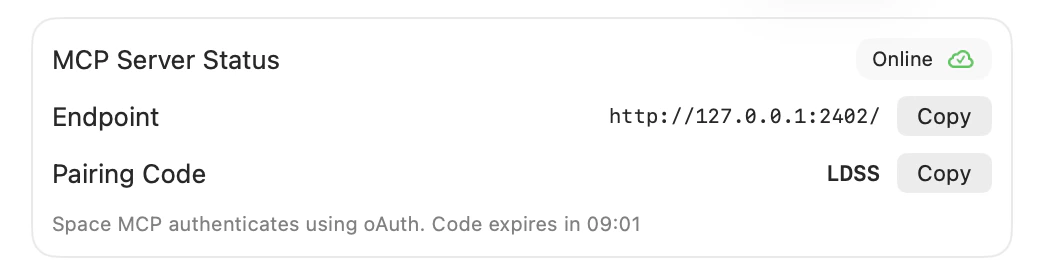
In your AI tool you’ll enter the pairing code shown in Space Settings, and you’re done.
Connecting manually
InSettings > AI, copy the Endpoint shown in the Authenticate section (for example: http://127.0.0.1:2402/).
Space MCP listens on localhost (127.0.0.1) and uses HTTP transport with OAuth.
During OAuth you’ll be asked for a time-based pairing code that Space shows in the same Settings screen.
Connecting to Claude Code CLI
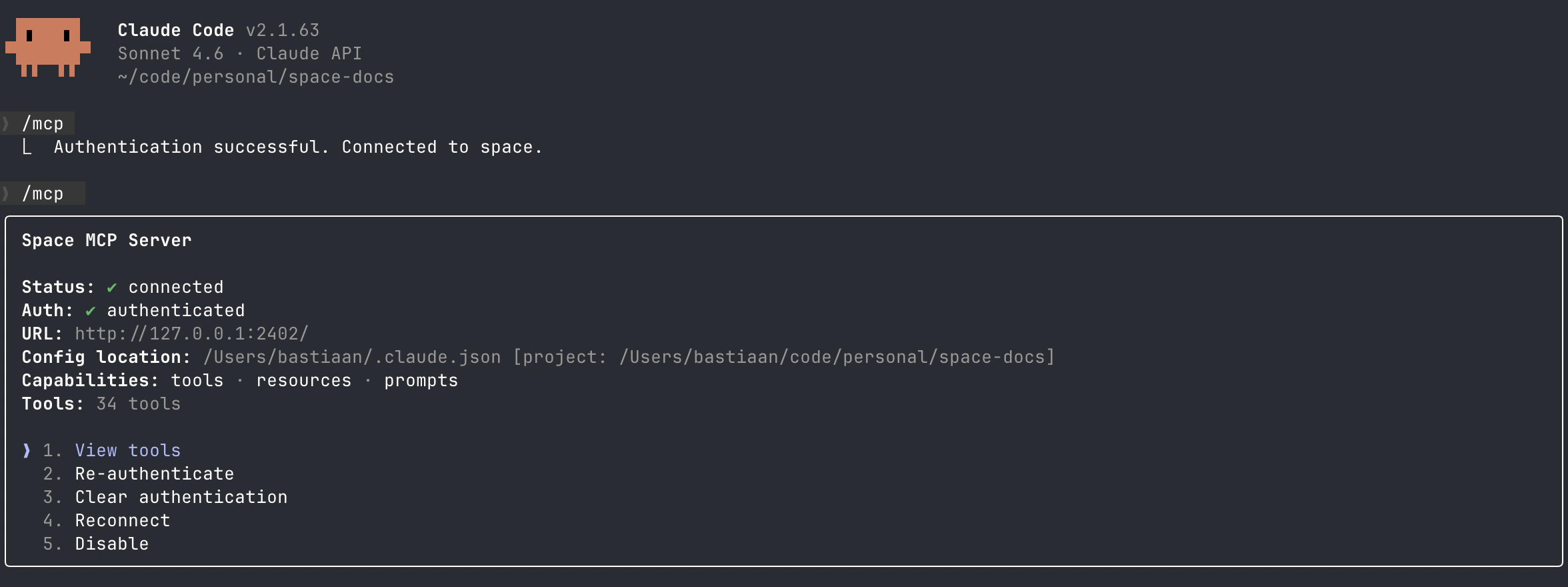
Run:- Start Claude Code:
claude - Run
/mcp - Select
space(it will show as unauthenticated) - Confirm authentication
- Enter the pairing code when your browser opens
Connecting to OpenAI Codex CLI
Run:Settings > AI).
The Codex Desktop app will automatically pick this registration up as well.
Connecting to OpenAI Codex Desktop App
- Open
Settings→MCP Servers - Click
+ Add server - Give the server a name (for example:
Space) - Select
Streamable HTTPas the transport - Enter
http://127.0.0.1:2402/as the URL
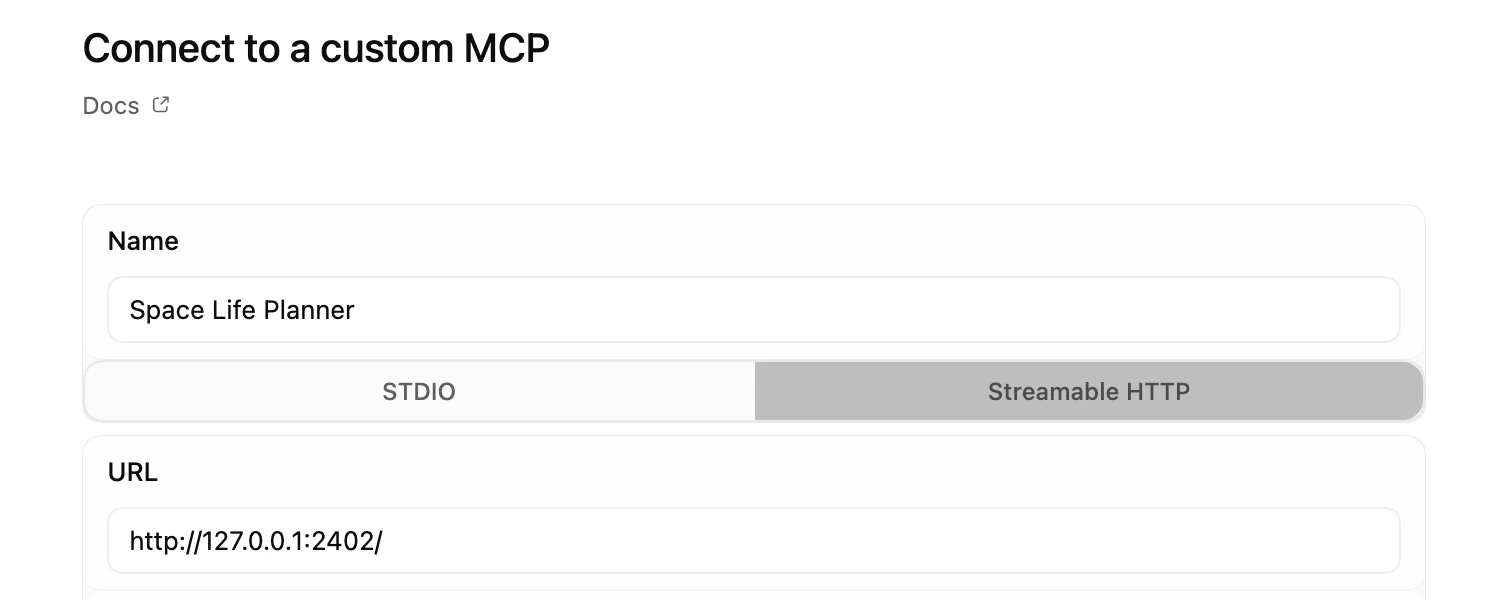
Save. An Authenticate button will appear next to the server.
Click it and enter the pairing code from Space (Settings > AI).

Connecting to Craft Agents
- In Craft Agents, go to
Sources→MCPs - Click
+ - When asked what to connect, enter “Connect to ‘Space Life Planner’, an MCP server at http://127.0.0.1:2402/”
- Wait a bit, then allow opening the OAuth screen
- Enter the pairing code from Space (
Settings > AI)
Connected clients
Space shows all connected clients inSettings > AI. You can disconnect a clients to immediately revoke access.
Reference: what you can do
Read operations
get_inbox,get_day,get_day_events,get_week,get_project,get_arealist_projects,list_areas,list_groupslist_long_term_plans,get_long_term_plansearch_todos
Write operations
Task operations:add_task,edit_task,delete_task,sort_tasksbulk_edit_tasks,bulk_delete_tasksschedule_task_event
add_project,edit_project,delete_projectadd_area,edit_area,delete_areaadd_group,edit_group,sort_groups,delete_group
edit_day,edit_weekdelete_completed_todos(project/area scope)
add_long_term_planedit_long_term_planlist_long_term_plans(defaults to active plans when no state filter is passed)
Prompts and resources (optional)
You can use Space with tools only. Prompts and resources are optional, but useful in clients that support them.Prompts
Prompts are pre-packaged workflows: Space bundles the right data plus a strong instruction template. Prompt families:- Briefings (quick overview):
day_brief,week_brief - Planning (actionable plans):
day_plan,week_plan - Operational review:
inbox_triage,project_review - Long-term planning:
ltp_summary,ltp_status_update,ltp_next_actions,ltp_risks,ltp_execution_alignment,ltp_plan_assist
Resources
Resources are read-only snapshots that some MCP clients can preload before generating a response. Examples:space://context/todayspace://context/this_weekspace://context/day/{date}space://context/week/{year}/{week}space://plans/activespace://projects/{project_id}/summary
get_day, get_week, get_day_events, etc.).
Important behavior notes
- Space must be running to use it with your AI tools.
day_isovalues are local calendar day semantics (YYYY-MM-DD) in the current system timezone.- Week inputs use ISO week semantics (
week+year). get_day_eventsuses the same visible-calendar pipeline as the in-app calendar.- Tools that offer
include_late/include_late_dayfiltering fall back to Space preferences when omitted. sort_tasksfollows your rollover preference for day/week late-task visibility. Sorting a day or week also normalizes visible late tasks to that day/week.- Group
intensityis a score from0to10; usenullinedit_groupto disable group intensity scoring. Group intensity is primarily used for yearly and quarterly plans. - IDs such as
project_id,area_id,group_id, andplan_idare opaque tokens returned by Space.